Team Collaboration
Everyone in the same hive.
Six roles, shared projects and @mentions. Clients can comment, viewers only read, and each person is notified of what is theirs.
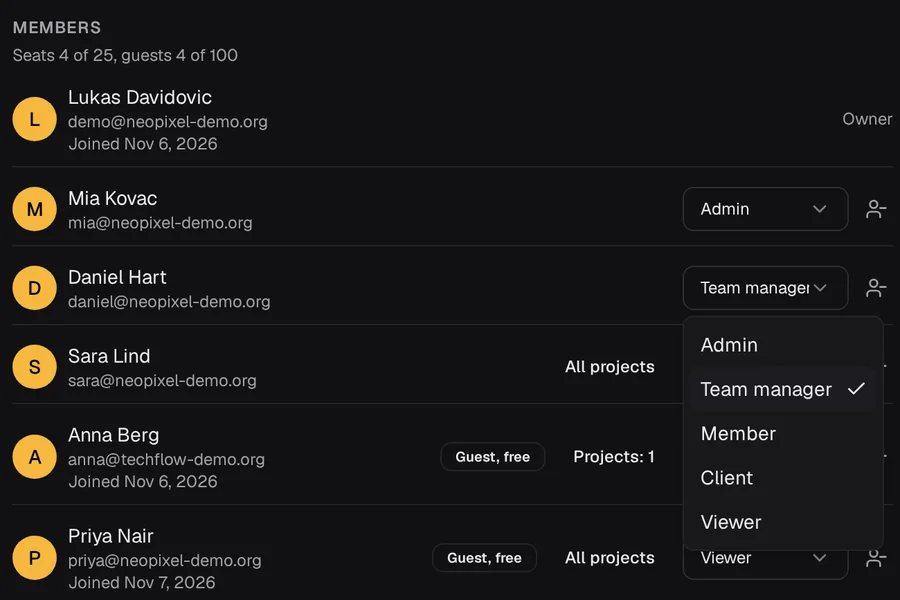
Six roles
Owner, Admin, Team manager, Member, Client and Viewer.
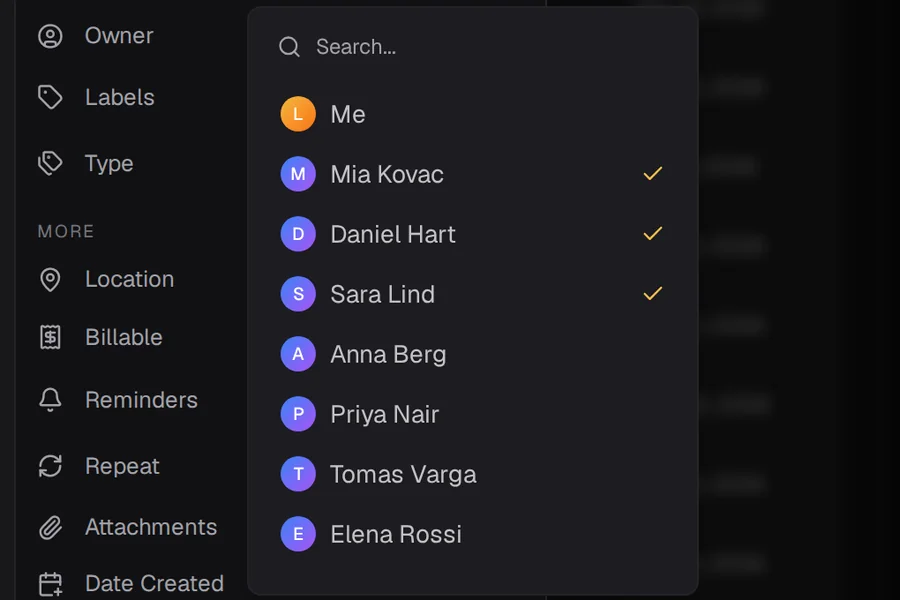
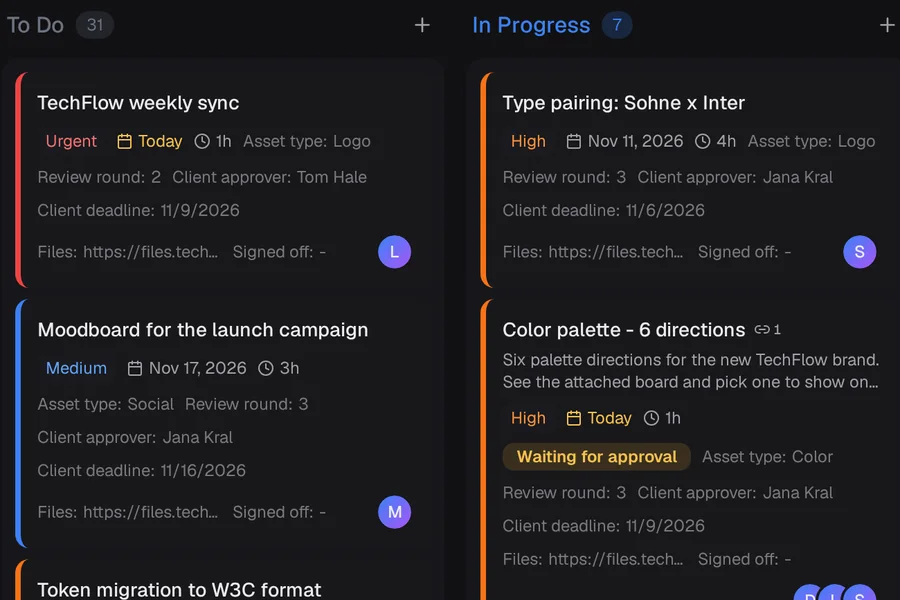
Several people on a task
Assign them all, and they are notified.
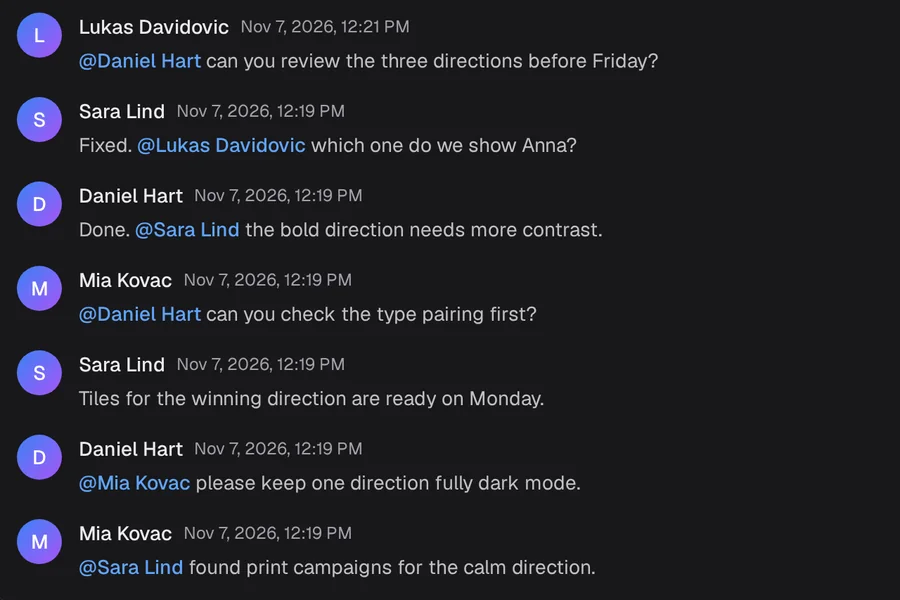
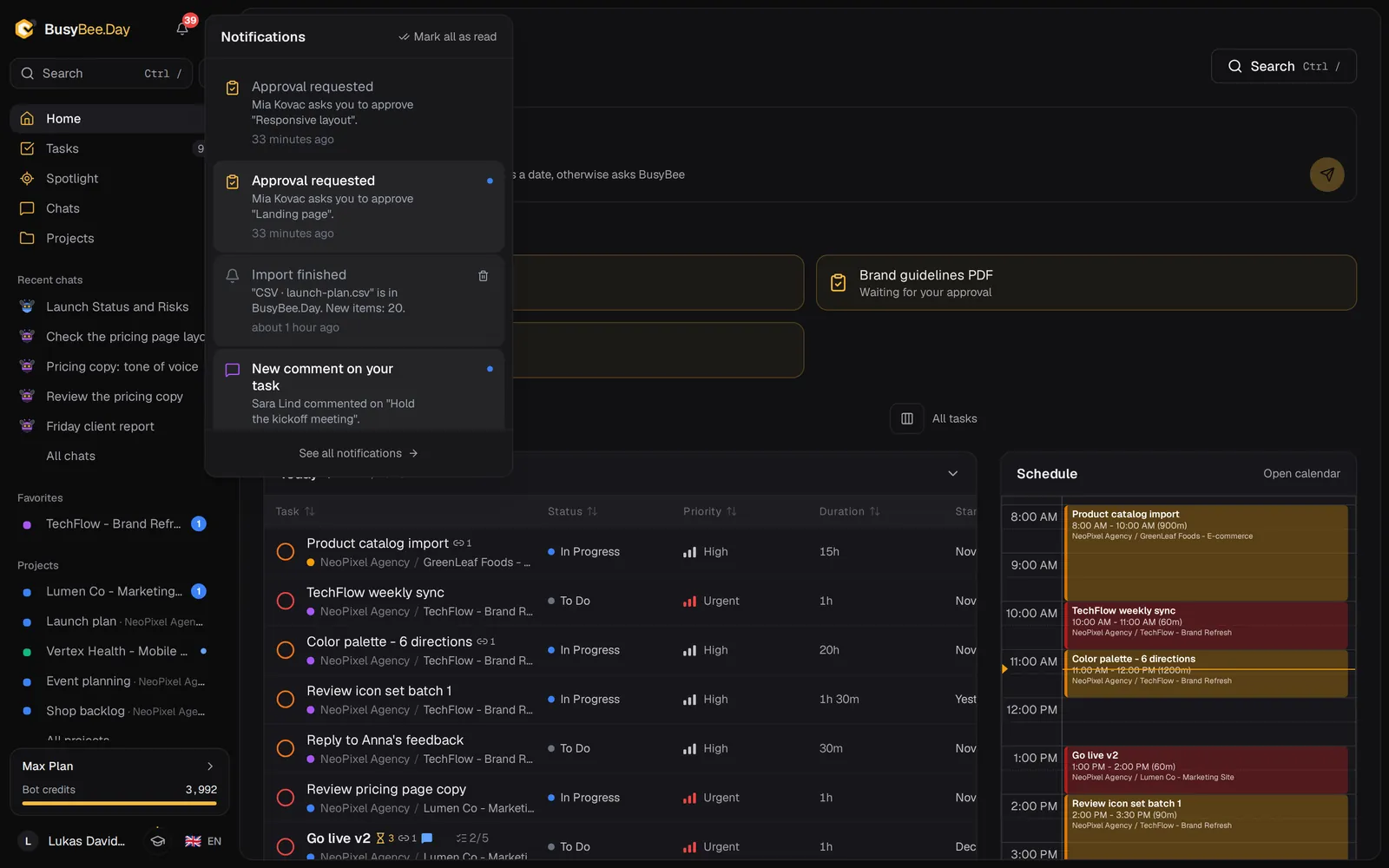
@mentions in comments
Pull the right person in, right where the question is.
With a bee on it
Or hand it to a bee.
Every bot can work here too, with the same tools you have. Say what you need and go do something else.
Quick answer
What is Team Collaboration?
Create a team, invite people by email and pick a role for each. Team projects, with their tasks and documents, are shared with every member, and the role decides who can edit, create, comment or only view. Basic includes up to 7 members, Pro and Max up to 25, and the Team plan is paid per member from 3.
Team collaboration software lets several people work on the same projects with controlled access. In BusyBee.Day a team shares its projects, documents, task statuses and team bots, while each person keeps their own tasks and calendar.
Everything included
Capabilities at a glance
- Six roles: Owner, Admin, Team manager, Member, Client, Viewer
- Email invitations valid for 7 days, accepted or declined in the app
- Assign a task to several people; they are notified
- Team projects, tasks and documents shared with every member
- Task statuses per team, labels shared across the team
- Comments with @mentions; Clients can comment, Viewers only read
- Owners and Admins change roles and remove members
- Members: Basic 7, Pro and Max 25, Team plan per member
How it works
How to set up team collaboration in BusyBee.Day
- 1
Create a team
Open Teams from the More menu and create a team.
- 2
Invite people
Enter their email addresses and pick a role. The invitation link is valid for 7 days, and people who already have an account also get a notification in the app.
- 3
Create team projects
A project created in the team is shared with all its members; the role decides what each one can do.
- 4
Assign tasks
Assign a task to one or more people. They are notified in the app and by email, depending on their notification settings.
- 5
Manage the team
Owners and Admins change roles, remove members and cancel pending invitations.
Use cases
Who uses Team Collaboration?
Agency with clients
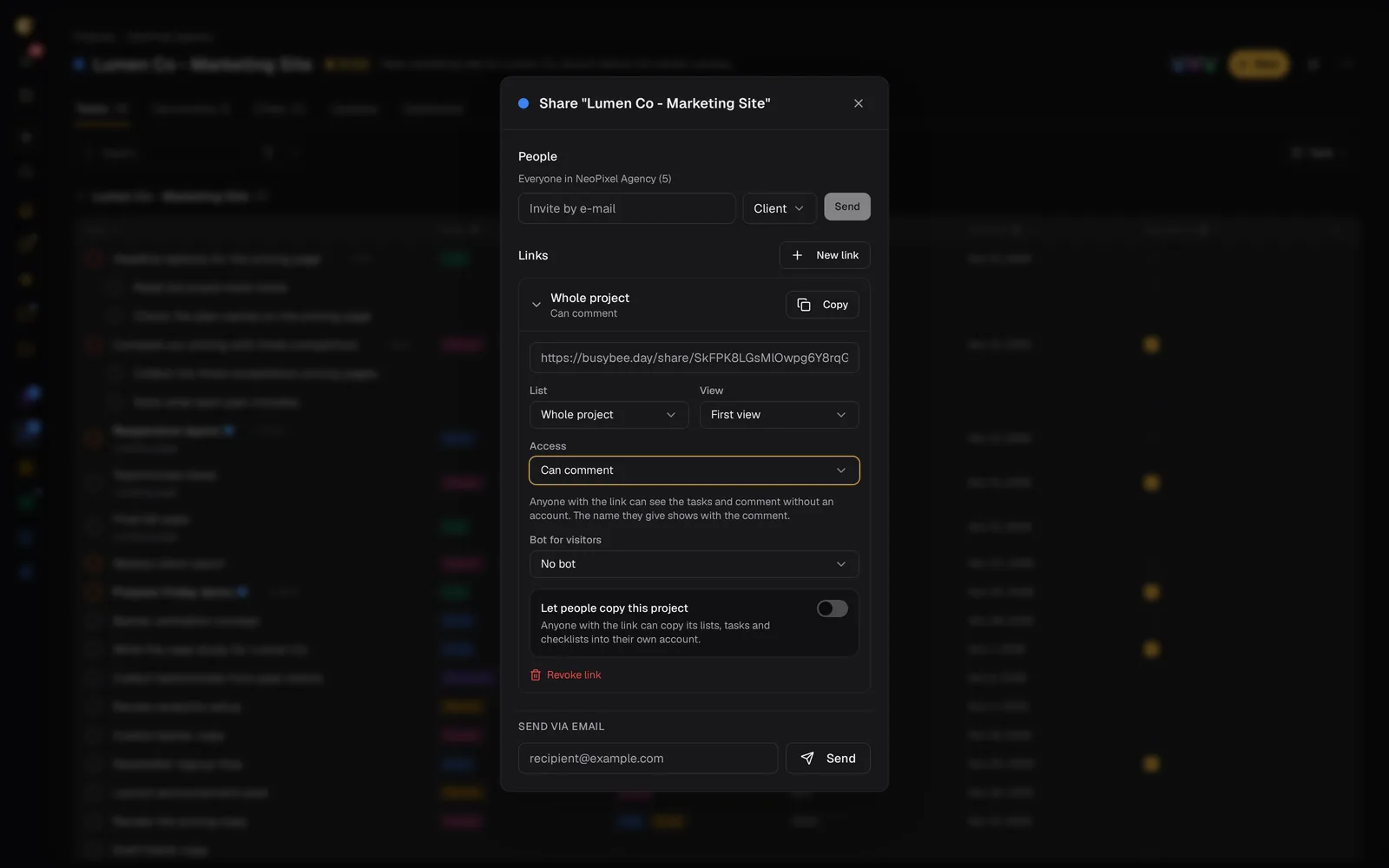
A client added with the Client role can read the team's projects and comment, but not change tasks. For a client without an account, send a read-only share link instead.
Engineering with PMs
PMs as Team managers, engineers as Members, stakeholders as Viewers.
Freelancer with subcontractors
The freelancer as Owner and one or two collaborators as Members.
Several teams
Separate teams for Design, Engineering and Operations, each with its own task statuses.
Comparison
BusyBee.Day Teams vs Asana vs Linear vs ClickUp
| Capability | BusyBee.Day | Asana | Linear | ClickUp |
|---|---|---|---|---|
| Role levels | 6 | 4 | 5 on Enterprise (4 on Business) | Owner, admin, member, guest; custom roles on Enterprise |
| Free plan team size | 1 (teams from Basic) | 2 | Unlimited | Unlimited |
| Sharing outside the team | Read-only link | Yes | Limited | Yes |
| Public read-only project link | Yes | Enterprise plans only (timelines and calendars) | Not documented | Yes |
| Per-team custom statuses | Yes | Starter and up, via custom task types | Yes | Yes |
| Paid plan price (per month) | Basic $10 for up to 7 members | Starter $10.99 per user yearly ($13.49 monthly) | $10 per user yearly ($12 monthly) | $9 per user yearly ($12 monthly) |
Comparison reflects publicly listed features and pricing as of November 6, 2026. Subject to change.
FAQ
Frequently asked questions
Written by the BusyBee.Day product team. Productivity software product team at BusyBee.Day. Last reviewed November 6, 2026.
What roles does BusyBee.Day support?
Six: Owner and Admin (everything, including members and roles), Team manager (edits everything in the team's projects and invites people), Member (creates tasks, projects and documents), Client (views and comments) and Viewer (views only).
How many members can I invite?
Teams start on Basic with up to 7 members; Pro and Max allow up to 25. For bigger teams the Team plan is paid per member, from 3, and adds AI credits for each one.
Can I invite external clients?
Yes, with the Client role (view and comment) or the Viewer role (view only). Roles apply to the whole team, so a client sees all of that team's projects. To show one project to someone without adding them, use a read-only share link.
Are team invitations secure?
Each invitation is a unique link sent to the invited email address. It expires after 7 days, and pending invitations can be cancelled.
Can each team have its own statuses and labels?
Each team can have its own task statuses, set by its Owners and Admins in Settings > Task Statuses. Labels are shared between the members of your teams; task types and custom fields belong to each person.