Buffer Time & Breaks
Breathing room, built in.
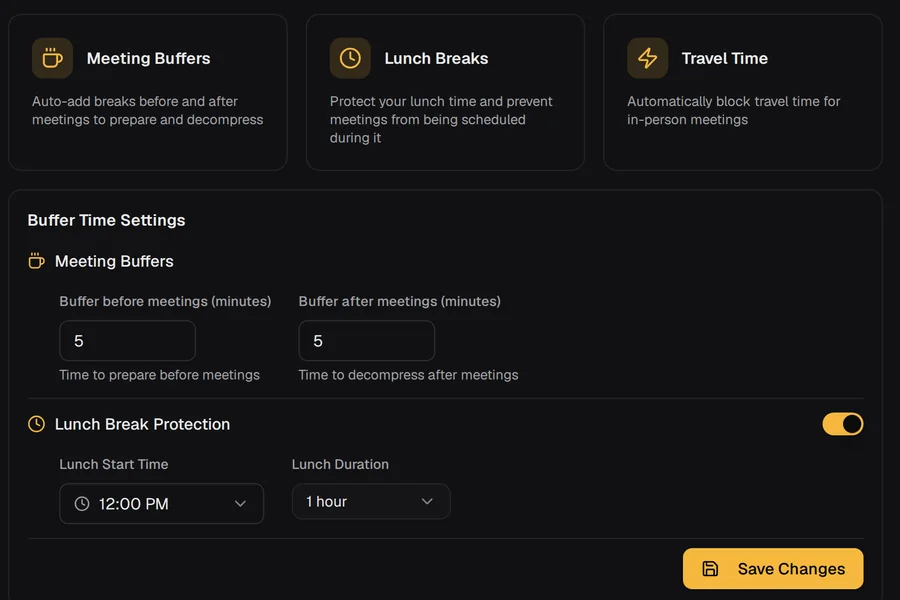
Free minutes before and after booked time, and a lunch break. Auto-schedule and bots plan around them.
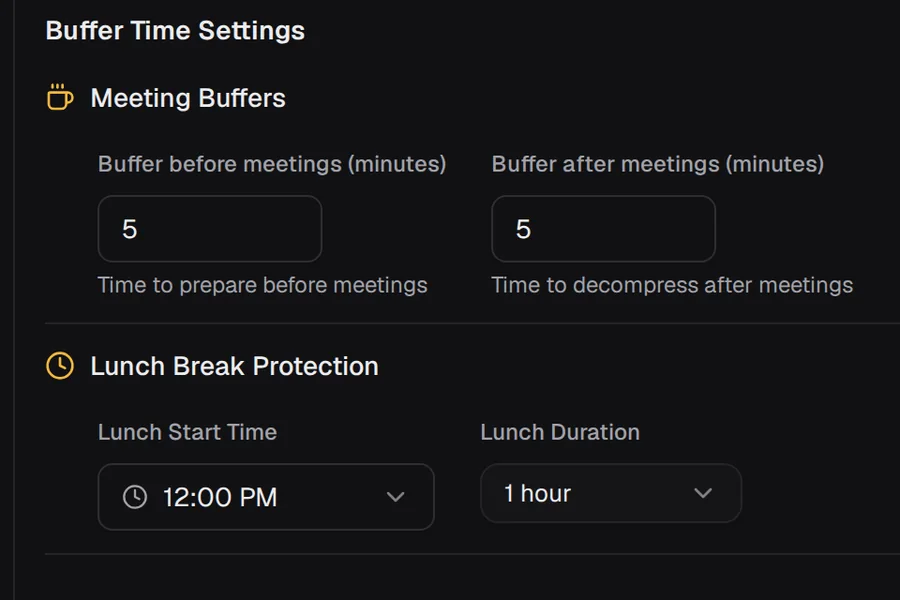
Before and after
Minutes kept free on both sides of booked time.
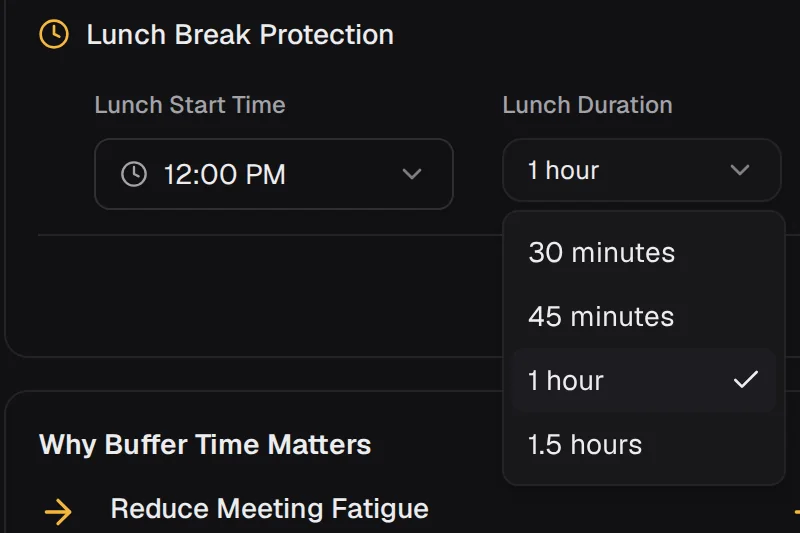
Lunch stays lunch
A start time and a length, or none at all.
Respected everywhere
Auto-schedule and bots plan around them.
With a bee on it
Or hand it to a bee.
Every bot can work here too, with the same tools you have. Say what you need and go do something else.
Quick answer
What is Buffer Time & Breaks?
Set buffer minutes before and after booked time (5 each by default) and a lunch break with a start time and length. When auto-schedule plans your tasks, it keeps the buffers around calendar events and scheduled tasks, and leaves lunch free.
Buffer time is the gap kept between blocks of work for a break, a change of context or preparation. Calendars rarely enforce it; in BusyBee.Day the planner does.
Everything included
Capabilities at a glance
- Buffer minutes before booked time
- Buffer minutes after booked time
- A lunch break with a start time and a length
- Lunch can be turned off
- Respected by auto-schedule
- Respected by bots when they suggest times
How it works
How to set up buffer time in BusyBee.Day
- 1
Open Buffer Time
On a phone, open More > Buffer Time; on a computer, go to /app/buffer-time.
- 2
Set the buffers
Enter the minutes to keep free before and after booked time, for example 10 and 5.
- 3
Set lunch
Pick a start time (for example 12:30) and a length (for example 60 minutes), or turn lunch off.
- 4
Plan
Press Auto-schedule in Tasks > Calendar; tasks are placed outside the buffers and lunch.
Use cases
Who uses Buffer Time & Breaks?
Back-to-back days
15 minutes after booked time, so a task never starts the minute a call ends.
Protected lunch
Lunch at 12:00 for 60 minutes; auto-schedule never plans a task there.
Preparation time
10 minutes before booked time to get ready.
Comparison
BusyBee.Day Buffer vs Reclaim vs Google Calendar
| Capability | BusyBee.Day | Reclaim.ai | Google Calendar |
|---|---|---|---|
| Buffer before and after | Yes | Yes | Only between booked appointments |
| Protected lunch break | Yes | Yes | No |
| Respected when tasks are planned | Yes | Tasks are no longer scheduled; other blocks follow priority | No |
| Built into a task app | Yes | No | No |
Comparison reflects publicly listed features and pricing as of November 5, 2026. Subject to change.
FAQ
Frequently asked questions
Written by the BusyBee.Day product team. Productivity software product team at BusyBee.Day. Last reviewed November 5, 2026.
How does buffer time work?
You set the minutes to keep free before and after booked time. When auto-schedule plans tasks, it treats those minutes as taken.
Can I set up a lunch break?
Yes. Set a start time and a length, and auto-schedule never plans a task in it.
Can I set a different buffer for one event?
No. The buffers apply to everything on your calendar.