Notifications
Only what needs you, once.
The bell updates live and each notification opens the exact task or chat. Act on it anywhere and it is cleared everywhere.
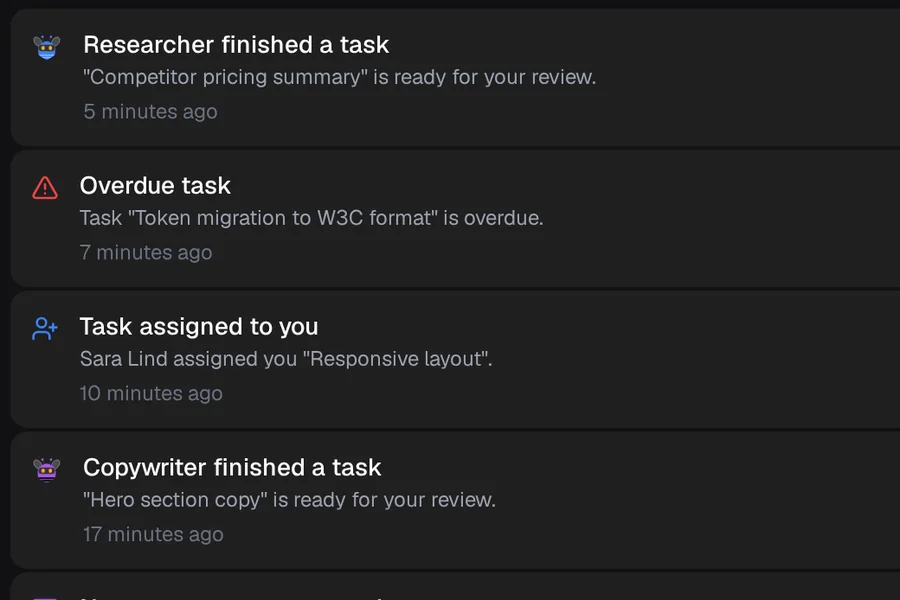
Opens the exact thing
Never a bare list to search through.
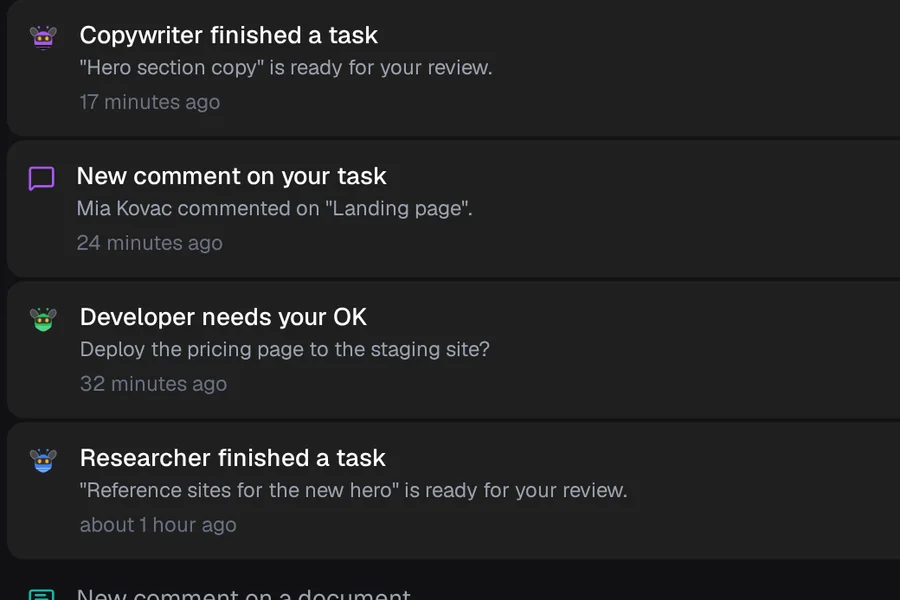
Bots report in
Done, failed or waiting for your OK.
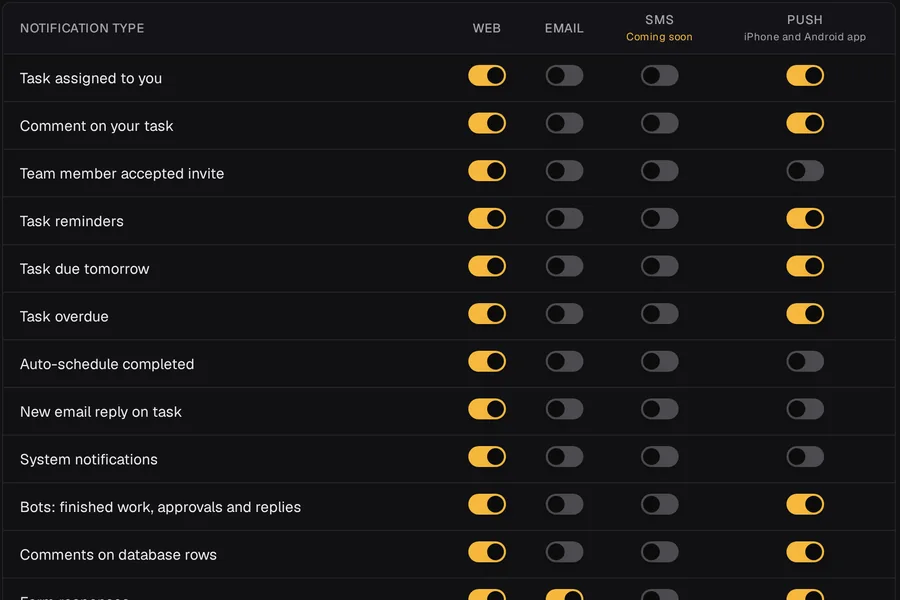
Email as you like it
Per event, plus a daily overview and a weekly digest.
With a bee on it
Or hand it to a bee.
Every bot can work here too, with the same tools you have. Say what you need and go do something else.
Quick answer
What is Notifications?
The bell shows new notifications live, and each one opens the exact task or chat it is about. Choose per event whether it reaches you in the app or by email. Add a daily overview and a weekly digest by email. Once you open, answer or complete the thing, its notification is cleared everywhere.
Notifications tell you when something needs you without making you check every project. In BusyBee.Day each notification belongs to one thing - a task or a chat - and goes away everywhere once that thing is handled.
Everything included
Capabilities at a glance
- In-app bell that updates live
- Email per event, set in Settings > Notifications
- Assignments, comments, @mentions, reminders, due and overdue tasks
- Bot updates: done, failed, or waiting for your OK
- Daily overview and weekly digest by email
- Each notification opens the exact task or chat
- Cleared everywhere once you act on it
- Mark all read
How it works
How to configure notifications in BusyBee.Day
- 1
Open notification settings
Settings > Notifications.
- 2
Choose per event
For each event, turn the app and email columns on or off.
- 3
Add summaries
Turn on the daily overview or the weekly digest, and pick the weekly digest's day and hour.
- 4
Use the bell
Click a notification to open the task or chat; Mark all read clears the list.
Use cases
Who uses Notifications?
Busy teams
Email only for assignments and comments; everything else stays in the bell.
Bots at work
A notification when a bot waits for your OK; answer it in the chat or under Needs you on Home.
Deadlines
Due tomorrow and overdue warnings by email, so nothing slips.
Weekly review
The weekly digest on Sunday evening.
FAQ
Frequently asked questions
Written by the BusyBee.Day product team. Productivity software product team at BusyBee.Day. Last reviewed November 6, 2026.
What channels can I receive notifications on?
In the app (the bell and the Notifications page) and by email. The phone and desktop apps, which are not publicly available yet, add push notifications.
Can I configure each event type separately?
Yes. Settings > Notifications has a row per event with a switch for each channel.
How do I get a summary instead of single emails?
Turn on the daily overview or the weekly digest in Settings > Notifications. The weekly digest is written by AI from your week and sent on the day and hour you choose.
Why did a notification disappear?
Because the thing it was about was handled: you opened, answered, completed or deleted it, on this or another device.