Custom Fields
Your columns, on your tasks.
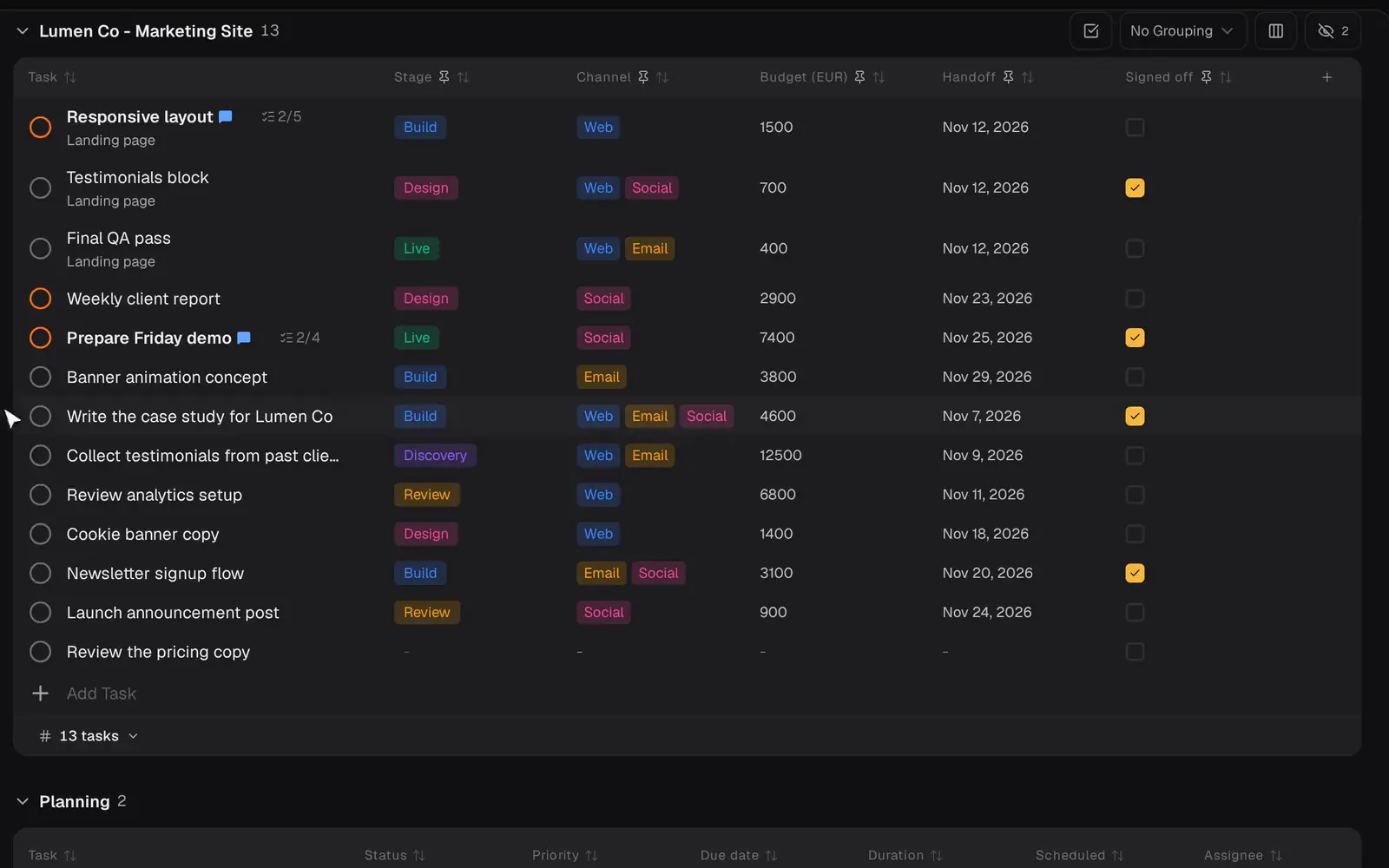
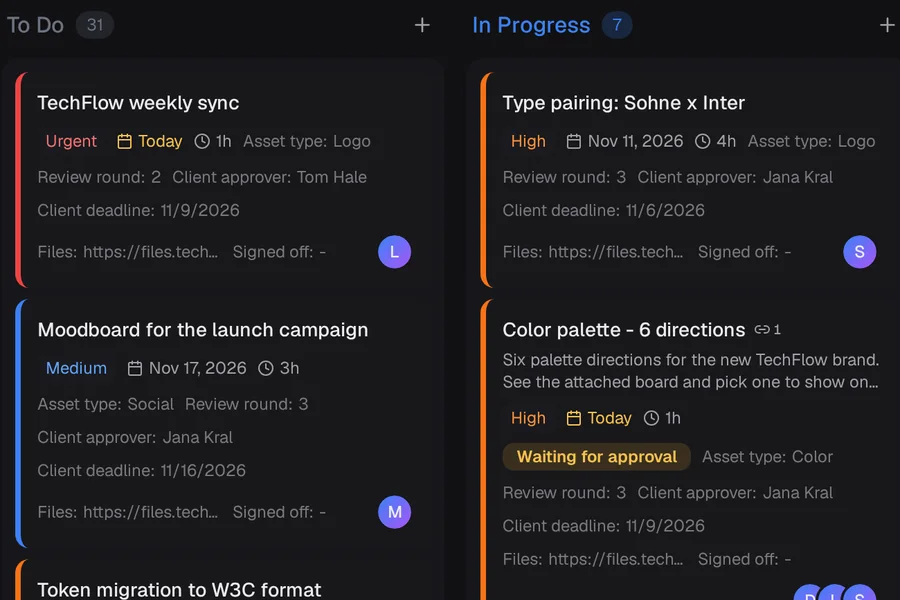
Text, numbers, dates, selects, URLs and relations to database rows. Show them as columns, then filter and sort by them.
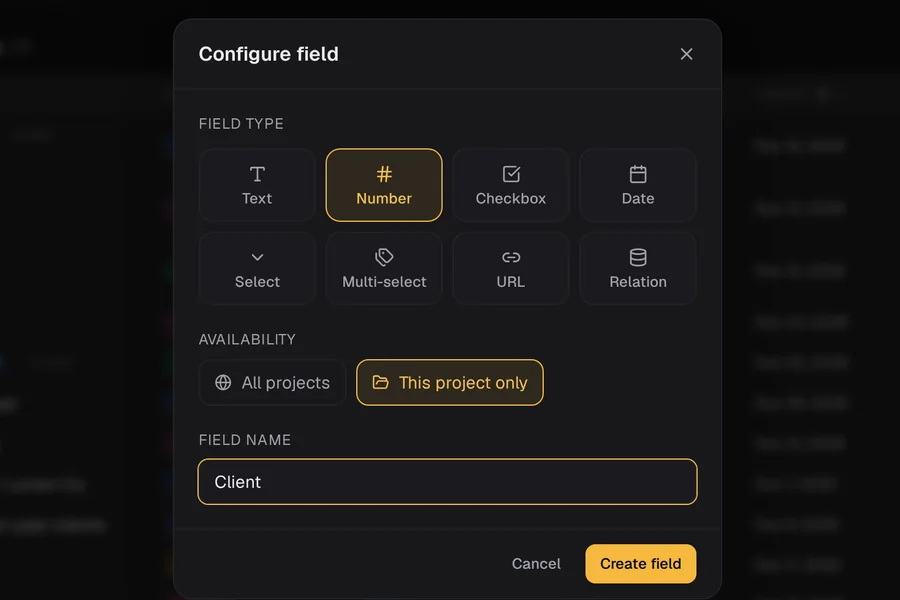
Eight field types
From a checkbox to a relation.
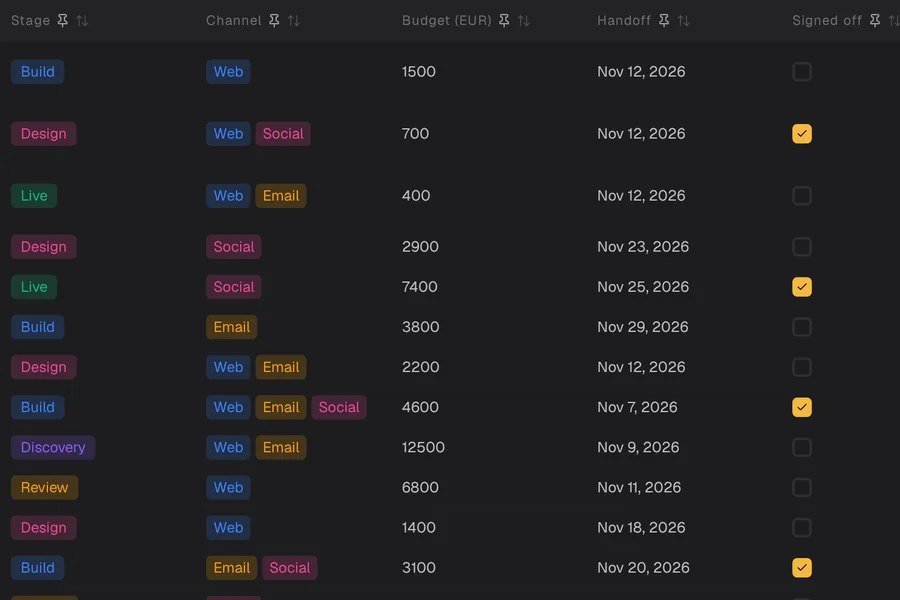
Colored options
Select fields read at a glance.
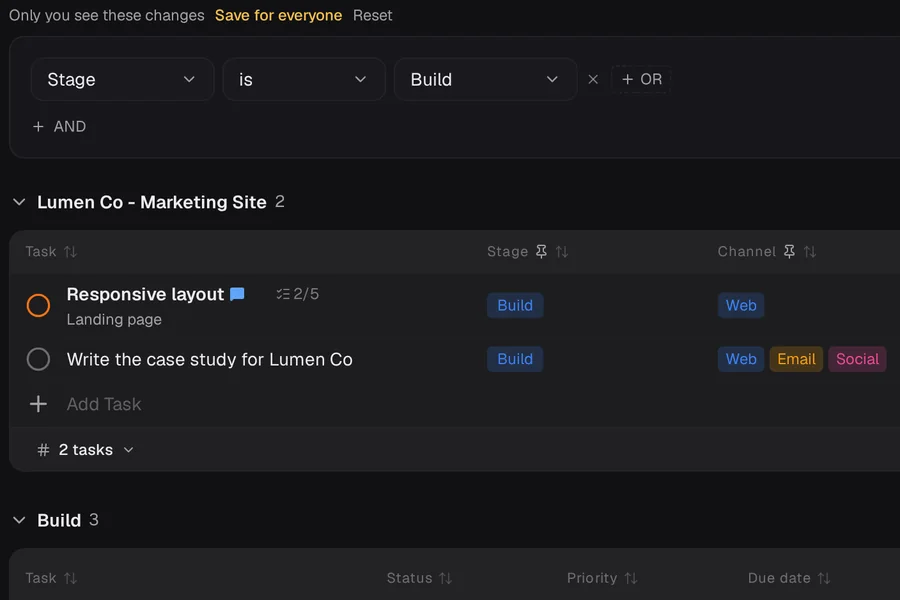
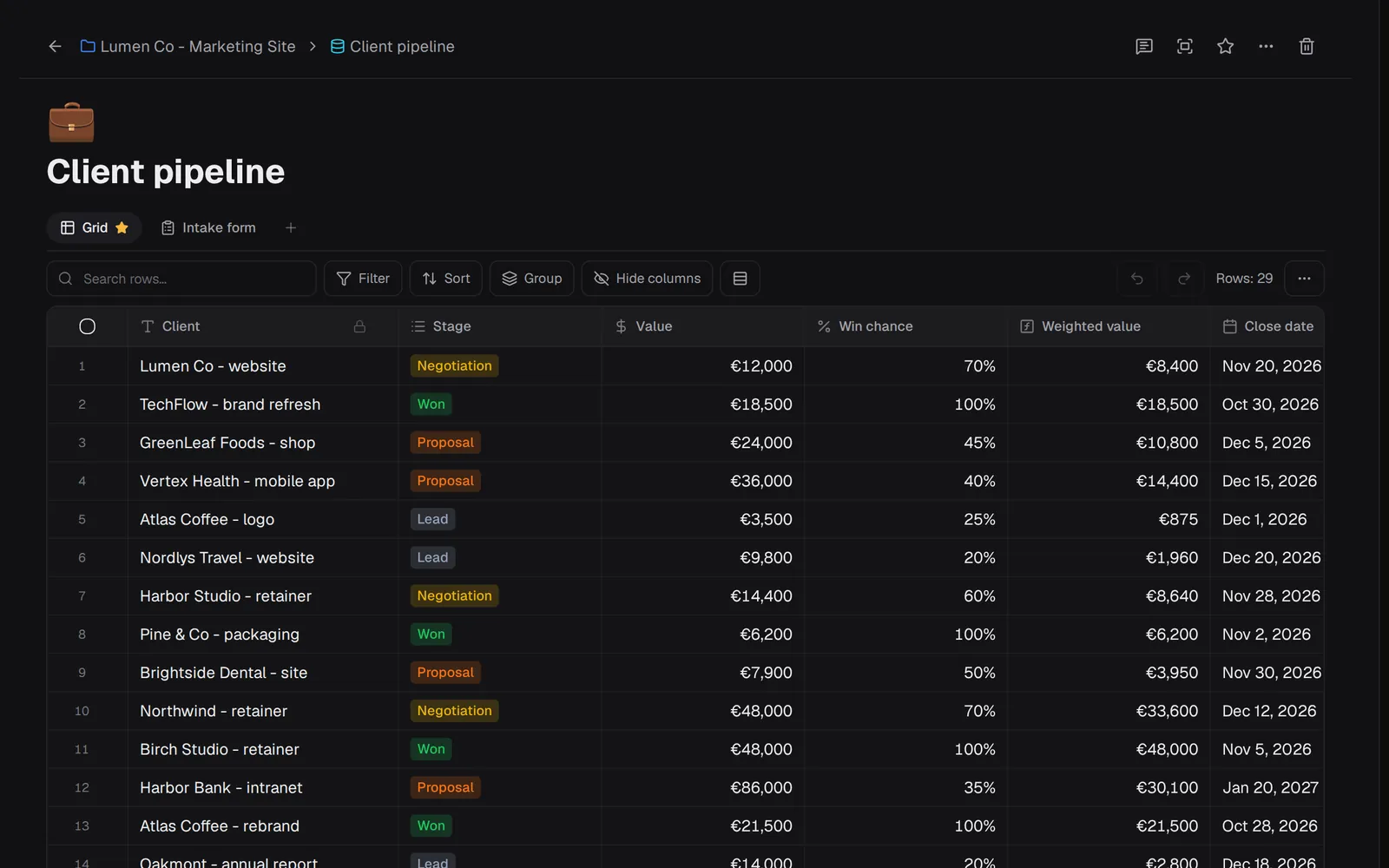
Sort and filter by them
Your fields work like the built-in ones.
With a bee on it
Or hand it to a bee.
Every bot can work here too, with the same tools you have. Say what you need and go do something else.
Quick answer
What is Custom Fields?
Add a field from the + at the end of a table: text, number, checkbox, date, select, multi-select, URL or relation (a link to rows of a Database). A field applies to all your tasks or to one project. Filter and sort by it like any built-in column. Basic allows 5 fields per project; Pro, Max and Team have no limit.
A custom field is a property you add to tasks, like an extra column in a spreadsheet, so tasks can carry what your team tracks.
Everything included
Capabilities at a glance
- Eight types: text, number, checkbox, date, select, multi-select, URL, relation
- For all your tasks or for one project
- Colored options for select and multi-select
- Shown as columns in the Table view
- Filter and sort by any field
- Relation fields link tasks to Database rows
How it works
How to add custom fields in BusyBee.Day
- 1
Open a table
Open a project, or Tasks, in the Table view.
- 2
Add a field
Click + at the end of the column headers, pick a type and give it a name, for example Number "Story points".
- 3
Choose where it applies
All your tasks, or only this project.
- 4
Add options
For select and multi-select, add the options and pick their colors.
- 5
Use it
Fill it in the table, then filter and sort by it.
Use cases
Who uses Custom Fields?
Engineering
Number "Story points" and URL "Pull request" in the sprint project.
Agency
Text "Client", number "Estimate (h)" and URL "Figma link"; filter by client.
Recruiting
Select "Stage" (Applied, Interview, Offer, Hired) and URL "Portfolio".
Sales
Number "Deal value", date "Close date" and select "Stage".
Comparison
BusyBee.Day Custom Fields vs Notion Database vs Asana
| Capability | BusyBee.Day | Notion | Asana |
|---|---|---|---|
| Field types | 8 | 20+ | Up to 9 (Starter and up) |
| Per-project scope | Yes | Per-database | Per-project |
| Filter and sort by field | Yes | Yes | Yes |
| Free plan | None (Basic: 5 per project) | Yes, up to 500 per database | 0 (paid only) |
Comparison reflects publicly listed features and pricing as of November 5, 2026. Subject to change.
FAQ
Frequently asked questions
Written by the BusyBee.Day product team. Productivity software product team at BusyBee.Day. Last reviewed November 5, 2026.
What types of custom fields does BusyBee.Day support?
Eight: text, number, checkbox, date, select, multi-select, URL and relation, which links a task to rows of a Database.
Can custom fields be specific to one project?
Yes. A field applies to all your tasks or only to one project.
Can I filter or sort by custom fields?
Yes. In the Table view you can filter and sort by custom fields like any other column.
Is there a custom-field limit?
The Free plan has no custom fields. Basic allows 5 per project, and fields for all tasks count too. Pro, Max and Team have no limit.